Build telehealth into anything you ship.
The Qualiphy API lets clinics, medspas, and software teams launch licensed provider consultations, treatments, and pharmacy fulfillment under their own brand. Programmatic access to the same network that powers Qualiphy's products. Comprehensive reference below.
Answer 5 quick questions, get a custom integration plan with the exact endpoints, sample call, and checklist your dev team needs.
Quidget is our drop-in WordPress plugin that wraps the Qualiphy API in a polished WooCommerce experience. Ship telehealth on your store without writing a line of code.
Code walkthrough
The fastest path from zero to a successfully approved exam.
1. Get an API key
Sign in to the Qualiphy portal and find your API key under Settings → API. If you don't have a portal account yet, sign up free - it takes a minute.
2. Find an exam ID
Each treatment your clinic offers has a numeric exam ID. You can either browse them in the portal under Exam List, or fetch them programmatically:
3. Send an exam invite
Build a payload with the patient's details, the exam ID from step 2, and a webhook URL where you want to receive the result. The sample below uses Test mode (state: "TE", name Test Approve) and exam 5359, Qualiphy's dedicated no-charge test exam, so it is safe to run as-is and costs you nothing. Swap in your own exam ID and real patient values when you are ready to ship.
5359. It is a no-charge exam Qualiphy maintains for exactly this purpose, so you can run the loop as many times as you need without an invoice. Every other exam is billed at your normal rate when it is approved, including one you sent only to check your wiring. If 5359 is not in your /exam_list response, ask your Qualiphy representative to enable it. If a test genuinely needs a specific exam instead, ask your representative or [email protected] before you send it.4. Wait for the webhook
A licensed provider reviews the patient and approves in 2-24 hours (for test exams; real exams are processed within seconds). When approved, your webhook_url receives a POST with the result payload. See webhook reference for the schema.
Authentication
Every Qualiphy API request includes your api_key in the JSON request body. There are no headers, OAuth tokens, or refresh flows to manage.
Where to find your key
- Sign in to the Qualiphy portal Settings
- Copy your API key
One key per account
Your API key identifies your entire Qualiphy account. /exam_invite has no field to select a clinic or business under the account, so a second brand on its own key means a second Qualiphy account. To run multiple brands on one account, separate the records instead: pass a brand identifier in additional_data (returned unchanged on every webhook) and use a per-call webhook_url and redirect URLs per brand.
Testing your integration
Qualiphy provides a dedicated Test state so you can validate exam submissions, webhooks, prescription workflows, and order set configurations without touching live patients or production providers.
/exam_invite samples in this documentation default to test-mode values so you can copy, paste, and run them safely.1. Route to the test state
On any /exam_invite request, set both state and tele_state to TE. This routes the request to the test environment and prevents any live workflow from running.
2. Use a test patient name that names your expected outcome
Test providers read the patient's name to decide how to process the exam — the name is your test instruction. Variations are fine as long as the intent is unambiguous (e.g. Test GFE Approve).
Test ApproveTest RejectTest N/ATest Prescription ApproveTest Prescription Reject3. Validate end-to-end
- Submit the test invite and capture
patient_exam_idfrom the response. - Watch your webhook endpoint for the lifecycle events.
- Confirm the outcome matches the name you used.
/exam_invite 200 response, then poll the webhook log.5359 does. Routing to TE stops live workflows; it does not stop the charge. Any exam other than 5359 is billed at your normal rate the moment it is approved, exactly as a live exam is. Use exam 5359, Qualiphy's dedicated no-charge test exam, and nothing is billed no matter how many times you run the loop. If a validation pass genuinely needs a different exam, arrange it with your Qualiphy representative or [email protected] before you send it rather than after the invoice.state and tele_state to TE is only half of it - the exam you're calling also needs the Test state enabled on your account. If a test invite goes quiet, confirm that with your Qualiphy representative before you start debugging your own code.email, phone_number, and dob values from our samples, or any clearly-fictional values. When you're ready to ship, switch state and tele_state to the patient's real state and use real patient details — see Going to Production.API Reference
Quick reference for every endpoint. The most-used parameters are documented here inline. For the complete parameter schema (every optional field, every edge case), each endpoint links to its canonical reference page.
All /exam_invite samples below use Test mode by default (state: "TE", name Test Approve) so the right-rail Try now is safe to run as-is. Swap in real values when you go live.
Returns every exam configured on your clinic. Use this to discover the id values you'll pass to /exam_invite. Each exam record tells you whether it's a GFE or an Rx (rx_type), what attachments the patient must upload (attachments), and any preset price.
Parameters
api_keyResponse fields
clinic_idexamsexams[].id/exam_invite in the exams array.exams[].titleexams[].rx_type1 = non-Rx (GFE). 2 = Rx, including QualiphyRx Packages, Urgent Care, and Choose-Your-Own-Pharmacy flows. There is no separate "Urgent" type — urgent-care exams are rx_type: 2 and are distinguished only by their title.exams[].price"27.99") when one is configured for the exam. null for exams that don't carry a fixed Qualiphy-side price.exams[].attachments_required1.exams[].attachments["Lab"], ["ID", "Lab"], or ["Picture of hair loss area"]. Empty array means only the standard ID is required.Sample response
The core endpoint. Creates a patient exam invite, returns a meeting URL, and (by default) emails and texts the patient. Most integrations only call this one endpoint.
Four possible scenarios
Qualiphy supports four distinct scenarios through the /exam_invite endpoint, each achieved by passing a specific combination of parameters. While the endpoint remains the same, the parameter sets determine the behavior, as detailed below:
Required parameters
api_keyexams/exam_list. Stack non-Rx exams freely; only one Rx exam may run per meeting.first_name last_nameemaildobYYYY-MM-DD. Example: 1990-06-30.phone_number+15552223232 or 1234567890.tele_stateCommon optional parameters
webhook_urladditional_dataredirect_approve redirect_reject redirect_na redirect_missedredirect_missed fires after a 3-minute provider-availability timeout.gender1=Male, 2=Female, 3=Prefer not to say. Integer, not a string.dmv_license_numberaddress_line_1 address_line_2 city state zip_codestate here is the address field; provider matching uses tele_state.shipping_address_line_1 shipping_address_line_2 shipping_city shipping_state shipping_zip_codePharmacy routing parameters
custom_pharmacy mapping. It's counter-intuitive: 1 means custom pharmacy, 2 means partner pharmacy. Easy to invert. The flag must also match how your exam is configured: sending custom_pharmacy on an exam set up for partner / Choose-Your-Pharmacy routing returns 401 "Only custom pharmacies available for this exam!". On those exams, omit custom_pharmacy entirely and preselect the destination with ncpdpid + the pharmacy_* fields + custom_pharmacy_patient_choice: 1 + skip_pharmacy_confirmation: 2.pharmacy_id/partner_pharmacy_list.order_set_id/partner_pharmacy_treatment_packages. Legacy: exam_pos_id is still accepted as a fallback for older integrations.custom_pharmacy1=Custom Pharmacy, 2=Partner Pharmacy.ncpdpid/custom_pharmacy_search. This is saved on the exam record as the e-Rx (SureScripts) destination. It's a pass-through - no registration or allowlisting of the pharmacy is needed on Qualiphy's side - and it can ride alongside pharmacy_id + order_set_id on Choose-Your-Pharmacy exams.pharmacy_name pharmacy_address_line_1 pharmacy_address_line_2 pharmacy_city pharmacy_state pharmacy_zip_code pharmacy_phone pharmacy_typecustom_pharmacy: 1.provider_pos_selection1=Provider does not choose. 2=Provider picks order set only. 3=Provider picks both pharmacy and order set (most flexible).custom_pharmacy_patient_choice1=Custom pharmacy is preselected. 2=Patient chooses their own custom pharmacy at the meeting. If omitted, this defaults to 2 even when you supplied an ncpdpid - the patient still gets a pharmacy step in the meeting, and their pick overrides your preset destination. For fully automatic routing with no patient step, always send 1 (requires ncpdpid).skip_pharmacy_confirmation1=Show pharmacy confirmation screen. 2=Skip it. Only skips when all pharmacy fields are present in the payload.custom_pharmacy_patient_billing1=Clinic is billed by the pharmacy. 2=Patient is billed.custom_pharmacy_clinic_billingcustom_pharmacy_patient_billing: 1.custom_pharmacy_delivery_method1=Patient picks up in pharmacy. 2=Ship to patient or clinic.Response
Common 401 errors
The /exam_invite endpoint returns several distinct 401 messages. Most map to a specific portal action you (or your clinic admin) need to take in app.qualiphy.me - not a code change.
webhook_url
Inbound webhook fired by Qualiphy at three lifecycle moments. Your handler dispatches on the event field. Respond 200 immediately and process asynchronously to avoid retries.
event.patient_exam_id and round-trip your own order ID in additional_data so every event matches back without a lookup.Where your webhook URL comes from
Two places can hold a webhook URL, and knowing which one is in play saves a lot of debugging.
webhook_url on the invite/exam_invite call. This is the primary method for an API integration and needs no portal access.webhook_url. Set it under Clinics → the three-dot menu on the clinic → Edit. This view is on the clinic owner account, so a manager-level login may not see it.webhook_url, so they fire against the clinic-level URL. If you want events for both API-created and staff-created exams, set both and keep them in sync.& or # gets truncated anywhere the URL is handled unencoded, which silently kills delivery.Event 1 - Consultation Complete
Fires for every exam (GFE, Rx, Urgent Care) when the provider finishes the consultation. This is the basic exam outcome.
Status values: Approved, Rejected, Deferred to Medical Director, NA, Missed. The exam_url is a CloudFront-hosted PDF of the consultation record. The signed URL expires 24 hours after the webhook fires - download and mirror the file to your own storage when you receive the event if you need long-term access.
Event 2 - Prescription Confirmed
Fires only for Rx exams, after Event 1, when the treatment order has been written and confirmed at the pharmacy. Carries the full schema below.
prescription is an array; an exam may include multiple treatment items. schedule_code reflects DEA controlled-substance schedule when applicable. Storage of these fields is regulated - design your DB schema with that in mind.
Event 3 - Prescription Tracking
Fires when the pharmacy ships the treatment. Use this to surface tracking info to the patient or your operations team.
Dispatching the events
A reliable handler maps the event integer to the appropriate processor:
Attach a document to a patient exam: ID photos, lab results, prior records. The provider sees attachments during the screening.
Returns the screening question schema for a given exam ID. Use to build pre-fill UI on your own intake form, or to map your existing intake fields onto the Qualiphy question set.
Parameters
api_keyexam_id/exam_list.Sample request
Submits answers on behalf of the patient. Pair with /exam_questions to pre-fill the screening from your own intake data, so patients aren't answering the same questions twice.
Parameters
api_keymeeting_uuid/exam_invite response. Omitting it returns 400 "Invalid meeting id".patient_exam_idpatient_exams[] array in the original /exam_invite response.answersquestion_id and answer. For single-select and multi-select questions also send exam_question_response_id (for multi-select, repeat the same question_id once per selection); use answer_text for options with a free-text box. Get IDs from /exam_questions.Sample request
Re-sends the invite email and SMS to the patient. Use when a patient says they didn't receive their original invite.
Parameters
api_keypatient_exam_idpatient_exams[] array in the original /exam_invite response.Sample request
Cancel a previously created patient exam invite. Useful when a patient cancels their order or you need to clean up a duplicate invite. Cancellation is only valid before the provider has acted on the exam.
Parameters
patient_exam_idapi_keySample request
Response
Cancellation rules (400 errors)
An exam can't be cancelled once a provider has acted on it. The 400 response tells you why:
/exam_invite_cancel twice on a successfully-cancelled exam returns 400 with the relevant status. Treat that as success in your retry logic.Lists the partner compounding pharmacies that can fulfill the given Rx exam(s) for a patient in the given state. Returns each pharmacy's pharmacy_id, which you'll pass into /exam_invite and /partner_pharmacy_treatment_packages.
Parameters
api_keyexam_ids/exam_list (rx_type: 2).patient_state"NY"). Filters to pharmacies that can ship to the patient's state. Omitting it returns an empty array.Sample request
Sample response
exam_ids returns 400 with "Cannot convert undefined or null to object" — not a missing-parameter message. An empty array ([]) response usually means no partner pharmacy / order sets are attached to those exams yet, or the patient_state isn't covered — contact your Qualiphy representative to get the pharmacy configured.Lists treatment packages (drug + dosage combinations + pricing) available at the given partner pharmacies for the given Rx exam(s). Returns order_set_id values for use with /exam_invite. Legacy exam_pos_id is still returned alongside for older integrations.
Parameters
api_keypharmacy_ids/partner_pharmacy_list. Accepts a single integer or an array.exam_ids/exam_list you want packages for.patient_state"NY"). Omitting it returns an empty array.Sample request
Sample response
pharmacy_ids (plural) — passing pharmacy_id returns an empty array, not an error. An empty array with correct parameters means no order sets are attached to those exams for those pharmacies yet — contact your Qualiphy representative.Look up any U.S. pharmacy by name, location, or NCPDPID. Returns full address and identifier fields you'll need for /exam_invite when using custom pharmacy routing.
Parameters
api_keysearch"CVS").zip_codencpdpidSample request
Sample response
Recipe: GFE for an Aesthetic Treatment
The most common Qualiphy API integration. A patient buys a Botox or filler treatment on your store; you need a licensed provider to clear them before they show up at the clinic.
Run a GFE for Botox or fillers
/exam_list to grab your aesthetic exam ID. Store the IDs you'll use - they're stable./exam_invite with the patient's details and your aesthetic exam ID.meeting_url in the response is yours to deliver - see Patient Notification Settings to disable.approve result. Update the order status and notify the patient that they're cleared to come in.Tip: Use additional_data to pass your internal order ID. It comes back unchanged in the webhook payload, making it trivial to match results to orders without a separate database lookup.
Recipe: Partner Pharmacy Medication Shipping
Order medication from our partner pharmacies with negotiated rates. We handle routing the prescription and notifying you with shipping updates along the way. Works for GLP-1, peptides, hormone replacement, and other Rx programs running through Qualiphy partner pharmacies.
Order medication with Qualiphy
/exam_list to grab the medication exam ID(s) you'll be sending patients through./partner_pharmacy_list with your Rx exam_ids and a patient_state to discover the pharmacies that can fulfill them. Store the pharmacy_id values you want to use. Skip this step if you don't have a preferred pharmacy and want the prescriber to choose the cheapest option every time./partner_pharmacy_treatment_packages with your pharmacy_ids, exam_ids, and patient_state to get the available packages. Store the order_set_id values. Skip this step if you don't care which dosage is prescribed and trust the physician to make the right decision per patient./exam_invite with the medication exam ID, the patient details, and the optional pharmacy_id + order_set_id if you preselected them.meeting_url in the response is yours to deliver - see Patient Notification Settings to disable.pharmacy_id and order_set_id on the patient/subscription record. For the next order just rebuild the same /exam_invite payload with current patient data - no need to re-discover pharmacy or dosage IDs./exam_invite again for a fresh meeting_url - the subscription cadence lives entirely in your billing system.Recipe: Urgent Care Visit & Custom Pharmacies
Use this flow when the prescription should ship to (or be picked up from) a pharmacy outside Qualiphy's partner network - the patient's local CVS, Walgreens, or any other retail pharmacy. Common for same-day UTI treatments, but also for any program where a patient prefers their own pharmacy over the partner-pharmacy default.
Send a prescription to a custom pharmacy
/exam_list to grab the exam ID(s) you'll be sending patients through./custom_pharmacy_search to look up nearby pharmacies by name or ZIP./exam_invite with the exam ID, the patient details, and the patient's chosen pharmacy.meeting_url in the response is yours to deliver - see Patient Notification Settings to disable.200), but the prescription has nowhere to go after the provider signs it - the order strands until someone manually sets a destination. If you route fulfillment yourself, include the ncpdpid and pharmacy fields on every invite.Variant: preselect a fixed pharmacy (no patient step)
If every order goes to the same pharmacy (e.g. your own fulfillment partner), preselect it on the invite instead of asking the patient. Send your exam's normal routing fields (pharmacy_id / order_set_id if it uses Choose-Your-Pharmacy order sets) plus the destination and the two mode fields - and note there's no custom_pharmacy flag in this shape:
custom_pharmacy_patient_choice: 1 removes the patient's pharmacy step; skip_pharmacy_confirmation: 2 skips the confirmation screen (it only takes effect because the full pharmacy address is present). Omit both and the invite defaults to patient-picks mode, where the patient's in-meeting choice overrides your preset destination.
Recipe: Pull Your Full Exam Configuration
You want an exam's full setup - its screening questions and the order sets and pharmacies attached to it - in machine-readable form, without transcribing it by hand or asking us to confirm what's attached. This recipe assembles the read-only endpoints you already have into one configuration view, so your integration can discover an exam's config on its own.
Discover an exam's questions, order sets & pharmacies
/exam_list to get every exam on your account with its id, title, and type. Pick the exam IDs you're integrating./exam_questions with the exam_id to get its screening question schema - the curated questions patients answer, keyed by no./partner_pharmacy_list with your exam_ids and a patient_state to find the partner pharmacies attached to the exam. Store the pharmacy_id values./partner_pharmacy_treatment_packages with those pharmacy_ids, your exam_ids, and patient_state to get the attached order sets - each with its order_set_id, exam_pos_id, title, pricing, and pharmacy_name./exam_questions returns each question by its no and text, not individual answer-choice IDs. When you submit answers back, match on no + question (see Pre-fill Patient Answers). Re-pull the schema after an exam is edited rather than caching it long-term.Recipe: Pre-fill Patient Answers
You already collect health screening info on your own intake form, and you don't want patients to re-answer the same questions during the Qualiphy screening. Or you want full control over the wording of every question and you'll display the form on your end - not Qualiphy's.
Submit answers programmatically
/exam_questions to get the question schema for the exam. Map each question to the matching field on your intake form./exam_invite as usual. Capture the returned patient_exam_id and meeting_uuid — both are required on the submit./exam_submit_answers with the patient's pre-collected answers. Every question you submit appears pre-filled on the Qualiphy side. If you submit answers for every question, the questionnaire is skipped entirely and the patient goes straight to the provider call. Submit a subset and the patient only sees the unanswered questions, with their existing answers shown alongside.Patient Notification Settings
Qualiphy sends two distinct kinds of patient-facing messages. Each can be disabled independently if you want full control - or you want your providers to stay out of direct patient contact. Disable one, both, or neither.
1. Auto-generated invites
When you call /exam_invite, Qualiphy automatically emails and texts the patient the meeting link. Disable these if you want to deliver the link from your own branded system using the meeting_url returned in the response.
How to disable: contact your Qualiphy rep. This is an account-level switch, not a per-request flag.
2. Provider direct contact
Qualiphy providers may personally email or call the patient in specific situations - for example, when a video call drops mid-session and the provider needs to call them back, or to nudge a patient whose exam has been pending too long. These messages come from the provider's number/email, not Qualiphy's automated system.
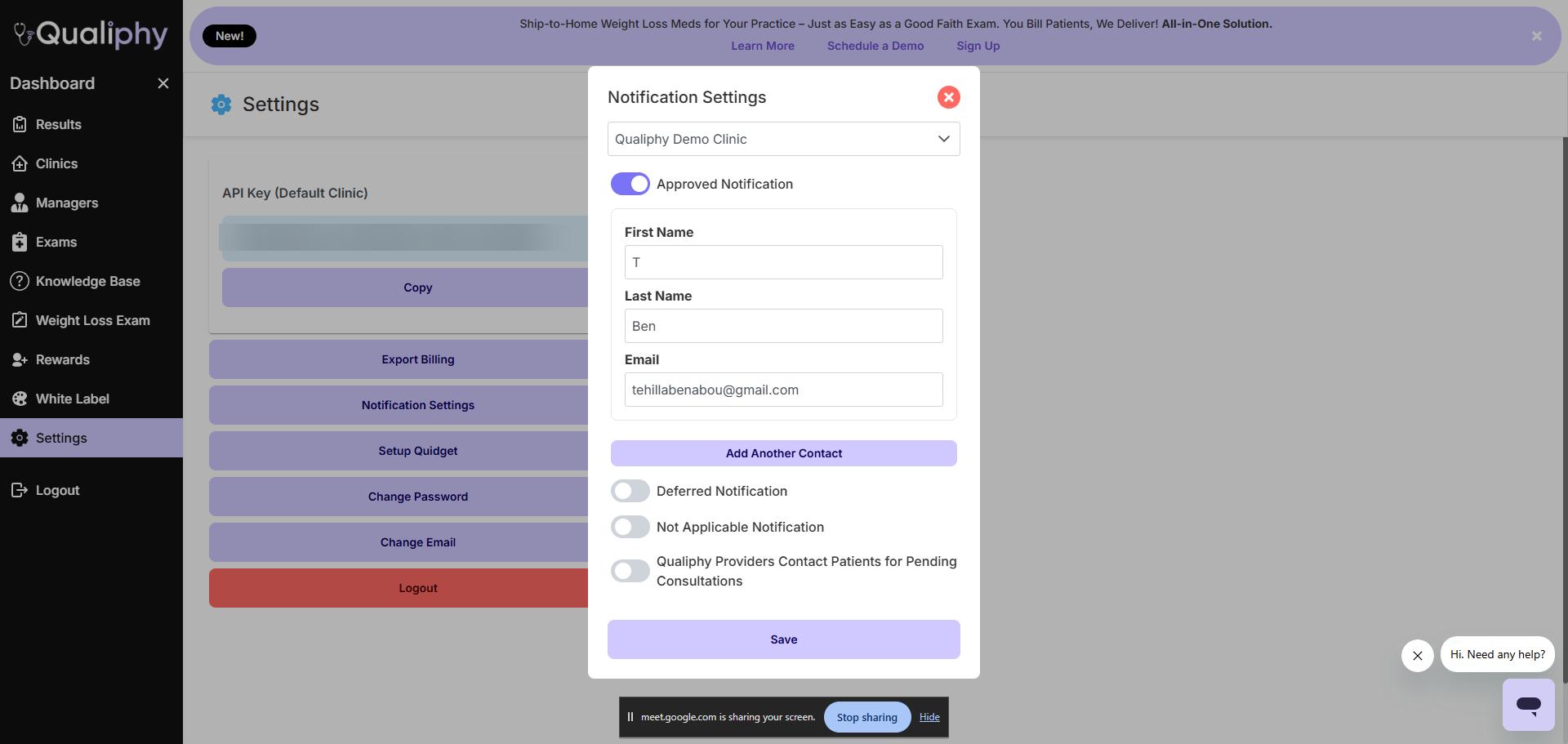
How to disable: in the Qualiphy portal, go to Settings → Notification Settings. From there you can toggle each notification type per clinic, manage which notification contacts get copied, and choose whether providers contact patients directly for pending consultations.
Sending invites from your own system
Once auto-generated invites are off, the integration shape is straightforward:
Deliver the meeting link yourself
/exam_invite as usual. Capture the returned meeting_url.meeting_url embedded in your branded template.How an Exam Works
Every Qualiphy interaction follows the same lifecycle, regardless of treatment type. Understanding this flow makes everything else easier to reason about.
/exam_invite with patient details and one or more exam IDs. Qualiphy returns a meeting_url immediately.webhook_url receives the result as a POST. Your handler updates the patient record, triggers fulfillment, sends a notification, or whatever your business logic requires.Steps 1 and 5 are where your code lives. Steps 2-4 happen on Qualiphy's side without further integration work.
Exam Types
The same /exam_invite endpoint handles all three exam types. The exam ID determines the type; a single payload can trigger one of any kind.
Good Faith Exam (GFE)
Provider clears a patient for an in-clinic procedure. Most common for Botox, fillers, IV therapy, and other aesthetic services. No medication is dispensed.
Rx Treatment
Provider evaluates the patient and, if appropriate, issues a treatment order. Common for GLP-1 weight loss programs, hormone therapy, and other ongoing treatments. Medication routes to a partner or custom pharmacy.
Urgent Care
On-demand consultations for acute conditions: UTI, pink eye, cold sores, acne, nausea. Treatments are sent to a retail pharmacy of the patient's choice.
How to know which type an exam is
Call /exam_list; each exam record returns its type. Or check the exam in the Qualiphy portal under Exam List.
States & Telehealth
Telehealth in the U.S. is regulated state-by-state. Qualiphy uses the tele_state field on every /exam_invite call to match patients with providers licensed in their location.
Always pass the patient's state
Not your clinic's state. The patient's state determines which providers can serve them and which pharmacies can fulfill treatments. A clinic in Texas with a patient in California sends "tele_state": "CA".
Format
Two-letter uppercase state abbreviation: NY, CA, TX, etc. Use DC for Washington D.C.
Coverage
Qualiphy serves 48 states + D.C. Alabama and Mississippi are not currently supported.
Pharmacy Routing
For Rx exams, you choose how treatments get from the provider to the patient. There are three patterns. Pick whichever fits your business model.
Partner pharmacy (recommended for Rx programs)
Use Qualiphy's pre-vetted compounding pharmacy network. Bundled, all-inclusive pricing. Qualiphy handles fulfillment and ships directly to the patient. Best for GLP-1, peptide, and other recurring Rx programs.
Workflow: call /partner_pharmacy_list with your Rx exam_ids + patient_state to see available pharmacies and their pharmacy_id, then optionally call /partner_pharmacy_treatment_packages (same parameters plus pharmacy_ids) to get an order_set_id for a specific package. Pass pharmacy_id + order_set_id into your /exam_invite payload.
Custom pharmacy
Send the treatment order to a specific retail or compounding pharmacy. Required for Urgent Care exams (the patient picks a pharmacy near them). Best when the patient already has a preferred pharmacy.
Workflow: call /custom_pharmacy_search to find a pharmacy by name or ZIP, then pass the resulting ncpdpid and address fields into your /exam_invite payload.
Provider's choice
Let the licensed provider pick the right pharmacy and order set during the consultation, based on the patient's needs. Use the provider_pos_selection field on /exam_invite:
123Field Glossary
The Qualiphy API has a few field names whose meaning isn't obvious from the name. Bookmark this section - you'll come back to it.
tele_state vs statetele_state is the patient's telehealth jurisdiction, used to match providers and pharmacies. It must be the patient's state, even if the clinic is elsewhere. state is just the patient's home address state. They're often the same value, but conceptually different fields.address_* vs shipping_address_* vs pharmacy_*address_* is the patient's home address. shipping_address_* is where Rx ships to (often a clinic or P.O. box, not the patient's home). pharmacy_* is the custom retail pharmacy when custom_pharmacy: 1.custom_pharmacy1=Custom Pharmacy (retail like CVS, Walgreens). 2=Partner Pharmacy (Qualiphy's compounding network). Must match the exam's configured routing: on exams set up for partner / Choose-Your-Pharmacy routing, sending this flag returns 401 "Only custom pharmacies available for this exam!" - omit it and preselect via ncpdpid + custom_pharmacy_patient_choice: 1 instead.attachments_required1=not required. 2=required. Watch for off-by-one bugs.rx_type/exam_list. 1=non-Rx (GFE), 2=Rx. You can stack non-Rx exams in one meeting; only one Rx exam per meeting.gender1=Male, 2=Female, 3=Prefer not to say.exam_id vs patient_exam_idexam_id is the static catalog ID for a treatment (e.g. "GLP-1 Weight Loss"). patient_exam_id is unique to one patient's instance of that exam. Always use patient_exam_id when cancelling, looking up answers, or correlating webhooks.event on the webhook1=Consultation Complete. 2=Prescription Confirmed. 3=Prescription Tracking. Always switch on this. Webhook reference →provider_pos_selection1=you specify both. 2=provider picks order set. 3=provider picks both.Webhook Best Practices
Webhooks are the most operationally sensitive part of any integration. A failed webhook handler means a missed approval, which means a frustrated patient. Build defensively.
Respond fast, process slow
Your handler should validate the payload, queue the work, and return 200 in under 100 ms. Do the actual processing in a background worker. Long-running webhook handlers cause Qualiphy to assume delivery failed and retry, which leads to duplicate processing.
Idempotency
Treat patient_exam_id as a unique key. If your handler is invoked twice with the same ID, the second invocation should be a no-op. Store a record of processed IDs and check on every call.
Logging
Log every payload before processing, including failed deliveries. When something goes wrong months later, the raw payload is the only forensic record you'll have.
Verifying the source
Webhook source verification is on the roadmap. For now, consider IP-allowlisting Qualiphy's webhook origin if your platform supports it, and ensure your webhook endpoint is over HTTPS.
Errors & Status Codes
200400tele_state. The response body specifies which field.401api_key is missing or invalid.500Going to Production
A pre-launch checklist. Run through this before flipping your integration on for real patients.
- ☐Full integration validated end-to-end via Test mode (state & tele_state set to
TE, expected outcomes confirmed via webhook) - ☐
stateandtele_statenow driven by the patient's real address (no hardcodedTEleft in code paths) - ☐Patient name fields use real patient data (no
Test Approve/Test Rejectfixtures left over) - ☐The no-charge test exam
5359replaced with the real exam IDs your integration sends - ☐Webhook handler tested against approve and reject paths
- ☐Production API key stored in your secrets manager (not in source control)
- ☐Idempotency check on
patient_exam_idin webhook handler - ☐Error monitoring on the
/exam_invitecall (4xx and 5xx) - ☐Subscribed to API change notifications
- ☐For Rx programs: pharmacy routing values stored on the patient/subscription record, not hardcoded
state/tele_state from TE to the patient's real state, replace test names with real patient data, and you're live. Roll out gradually — feature-flag the integration on for a small percentage of patients first.Want a tailored plan for your team?
The quick start asks a handful of questions about your business, then generates a custom integration plan you can email straight to your dev team.
Run the quick start →